If you just installed WordPress and your website still looks plain, don’t worry — that’s completely normal.
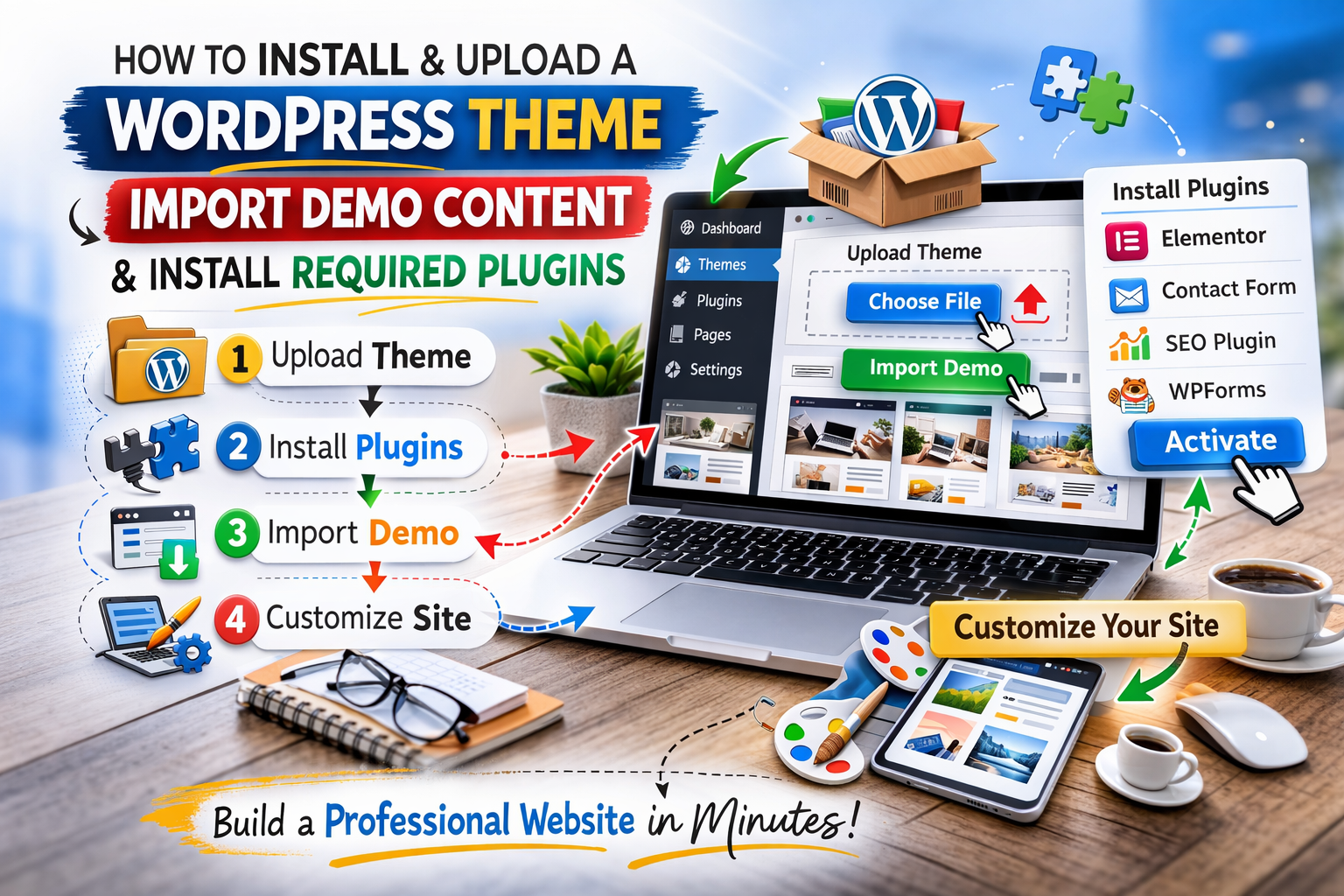
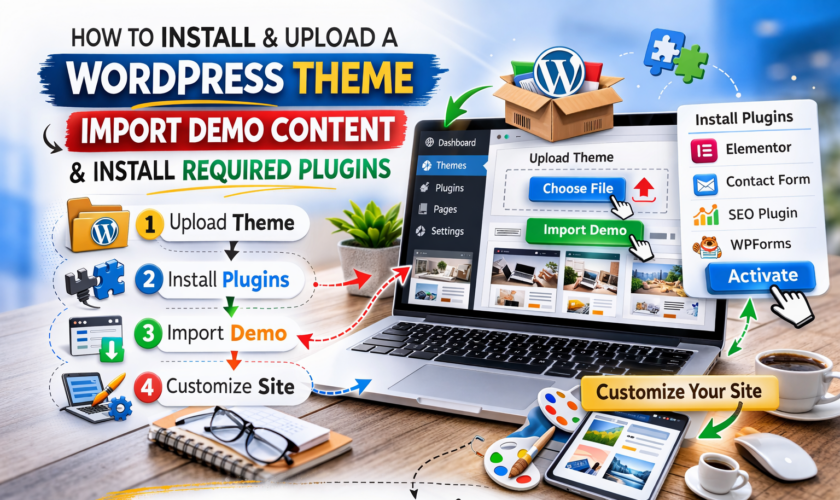
One of the most searched questions by beginners is: “How do I install a WordPress theme and import demo content?” In this practical step-by-step guide, I’ll show you exactly how to upload a WordPress theme template, install required plugins, and import demo content so your website looks professional in minutes.
Let’s get started.
Step 1: Login to Your WordPress Dashboard
First, go to:
yourwebsite.com/wp-admin
Enter your username and password to access your WordPress dashboard.
This is where you control everything — themes, plugins, pages, posts, and more.
Step 2: Install a WordPress Theme (Free Theme Method)
If you’re installing a free theme from the WordPress directory:
Go to Appearance → Themes
Click Add New
Use the search bar to search for your preferred theme (e.g., Astra, OceanWP, Neve)
Click Install
Click Activate
Your new WordPress theme is now live.
Step 3: Upload a Premium WordPress Theme (ZIP File Method)
If you bought a premium theme from marketplaces like or , you will receive a ZIP file.
To upload it:
Go to Appearance → Themes
Click Add New
Click Upload Theme
Click Choose File
Select the theme ZIP file (do NOT unzip it)
Click Install Now
Click Activate
That’s it! Your premium WordPress theme is now installed.
Step 4: Install Required Plugins
After activating your theme, you may see a notification like:
“This theme requires the following plugins…”
Most modern WordPress themes require plugins like:
Elementor (for drag-and-drop page building)
WPForms
Contact Form 7
One Click Demo Import
To install required plugins:
Click Begin Installing Plugins
Select all required plugins
Choose Install from the bulk actions dropdown
Click Apply
After installation, click Activate
Installing required plugins ensures your theme works exactly like the demo preview.
Step 5: Import Demo Content (Make Your Website Look Like the Demo)
This is the most exciting part.
Demo import allows you to copy the exact layout, images, homepage design, and structure of the theme preview.
To import demo content:
Go to Appearance
Click Import Demo Data (or Demo Import)
Choose your preferred demo layout
Click Import
Wait 2–5 minutes (do not refresh the page)
Once completed, your website will look exactly like the demo version.
This step is why many beginners search for:
“How to import demo content in WordPress”
“One click demo import WordPress”
“How to make WordPress look like demo”
Step 6: Customize Your Website
Now that your theme and demo are installed:
Go to Appearance → Customize
Change your logo
Edit colors
Update fonts
Modify header and footer
Replace demo text with your own content
If your theme uses Elementor:
Go to Pages
Click Edit with Elementor
Drag and customize sections easily
Common Beginner Mistakes to Avoid
✔ Do NOT upload the entire downloaded folder — only upload the installable theme ZIP file
✔ Do NOT refresh during demo import
✔ Always install required plugins first
✔ Backup your site before importing demo content
Final Thoughts
Learning how to install a WordPress theme, upload a template, import demo content, and install required plugins is one of the most important beginner skills in website design.
Once you understand this process, you can build business websites, blogs, portfolios, and even eCommerce stores professionally.
If you’re serious about learning WordPress step-by-step, keep practicing. The more you experiment with themes and plugins, the more confident you’ll become.
Now go ahead — install that theme and bring your website to life 🚀