
WordPress is the most popular content management system in the world, powering over 40% of websites globally. If you are a beginner looking to build a blog, business website, or portfolio, learning how to install WordPress and navigate the WordPress dashboard is the perfect starting point. This step-by-step tutorial will guide you through the complete process in a simple and beginner-friendly way.
What You Need Before Installing WordPress
Before installing WordPress, make sure you have the following:
A domain name (example: yourwebsite.com)
A web hosting plan that supports WordPress
Access to your hosting control panel (usually cPanel)
Most modern hosting providers support WordPress, making the installation process quick and easy.
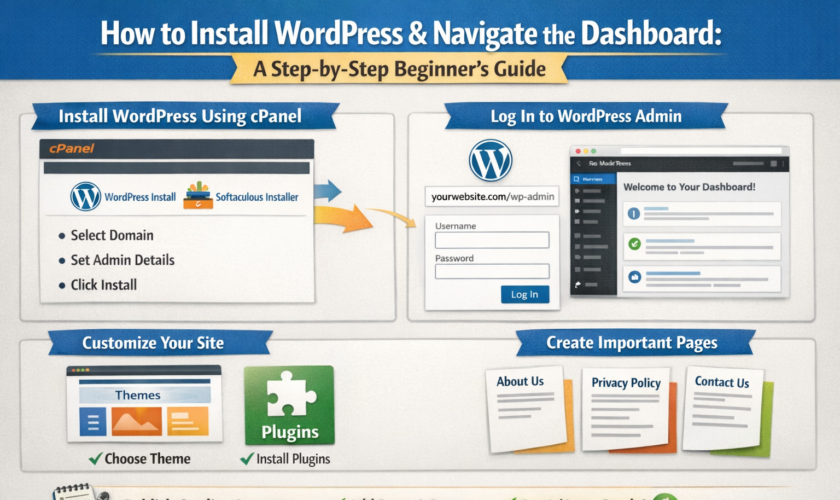
Step 1: Install WordPress Using cPanel (One-Click Method)
The easiest way to install WordPress is through your hosting control panel.
1. Log in to your hosting account and open cPanel
2. Look for WordPress Installer or Softaculous Apps Installer
3. Click on WordPress and select Install Now
4. Choose your domain name
5. Set your website name, admin username, password, and email
6. Click Install
Within a few seconds, WordPress will be successfully installed on your website.
SEO Tip: This method is ideal for beginners searching for how to install WordPress easily or WordPress installation for beginners.
Step 2: Log In to Your WordPress Admin Dashboard
Once installation is complete:
Visit: yourwebsite.com/wp-admin
Enter your admin username and password
This will take you to the WordPress dashboard, which is the control center of your website.
Step 3: Understanding the WordPress Dashboard
The WordPress dashboard may look overwhelming at first, but it is easy to understand once you know the basics.
Dashboard
This is the homepage of your admin area. It shows updates, notifications, and site activity.
Posts
Posts are used for blog content. You can:
Add new blog posts
Edit or delete old posts
Organize posts using categories and tags
Pages
Pages are for static content such as:
About Us
Contact
Privacy Policy
These pages are important for Google AdSense approval.
Media
The Media Library stores images, videos, and files uploaded to your website.
Step 4: Install and Customize a WordPress Theme
Themes control the design and layout of your website.
1. Go to Appearance > Themes
2. Click Add New
3. Choose a responsive and fast theme
4. Click Install and then Activate
A clean, mobile-friendly theme improves user experience and SEO performance.
Step 5: Install Essential WordPress Plugins
Plugins add functionality to your website. For beginners, install only necessary plugins such as:
SEO plugin
Security plugin
Performance optimization plugin
Avoid installing too many plugins, as this can slow down your site.
Step 6: Create Important Pages for AdSense Approval
To increase your chances of Google AdSense approval, create the following pages:
About Us
Contact Us
Privacy Policy
Terms and Conditions
These pages show that your website is trustworthy and professionally managed.
Step 7: Publish High-Quality Content Consistently
Now that WordPress is set up, focus on publishing original, helpful, and informative content. Write for users, not just search engines. Use clear headings, simple language, and valuable information.